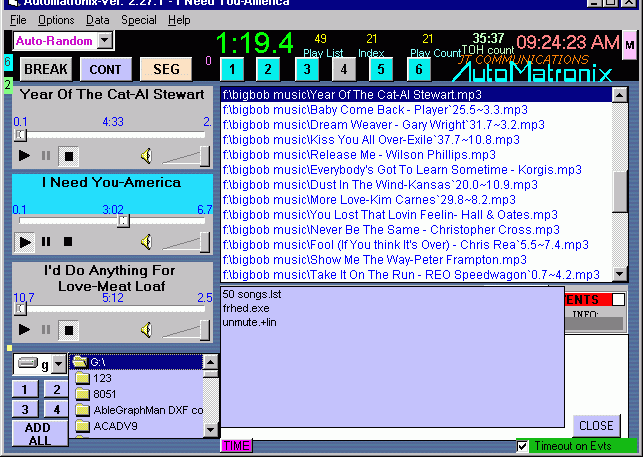
Automatronix utilizes a standard Windows-type GUI. The Title bar contains the standard minimize, exit, and maximize buttons, as well as the curent playing song. The specific operation of these controls can be found in SYSTEM OPERATION.
Note: You can place the mouse over any item, and a pop-up window will briefly explain the operation of the specific item.
FILE:
Open New playlist- clears all
files in playlist window and opens a new one.(Control-F5)
Save Current Playlist- Saves
playlist window.
Append to Playlist- use this
to add to the current playlist in the playlist window.
Clear Current Playlist- Clears
all files in playlist window. (Control-F6)
Transfer Current Playlist to Editor- This allows the direct copy and paste of main playlist directly into the playlist editor.
Load HotKeys from file- Loads
all HotKeys from file.(Control-F7)
Save HotKeys to file- Saves
whatever is currently in Hotkeys to a file
Exit- Exits Automatronx
OPTIONS:
Set Defaults- Opens Default
settings (see OPTIONS
) (Control-F8)
Get Playtime in Playlist- Calculates
Total playtime of songs in playlist (FUTURE FEATURE)
Playlist Maintenance- Opens
playlist editor (see Playlist editor
).(Control-F9)
Stop Events at end of AUTO-ONCE
mode- Disables events (if on) when playlist reaches end of list in AUTO-ONCE
mode.
Disable Events in Break- unchecks
Event check box while in break. You must reset event checkbox when exiting
break mode .
Event Database- this brings up specific options for manipulation of the event database such as:
-Compacting the database- this 'cleans up' any old data in the database. Microsoft is not very good at housekeeping in the database world, and this feature helps in the clean up process.
- Backing up the current database- Self explanatory
-Opening a different database- Useful when changing to alternate event databases.
-Creating a new database- When wanting to create a new event database.
DATA:
Add files- Opens FILE SELECTION
WINDOW (Control-F11).
Go to Index on playlist- Jumps
to selected index in playlist.
SPECIAL:
Search Playlist for Song- Searches
playlist for user input (Control-F).
Reset Playlist counter- sets
playcount back to 0.
System control w/keyboard when
checked- toggles keyboard shortcuts.
Clear Event in Event list window-
Removes event listed in event window.
Reset Live Input- Turns off
live input and restores to normal automation.
Kill Loaded Event- Kills any
event currently loaded into the players.
Re-connect Outgoing TCP/IP communications- Useful if remote server connection is lost.
Disconnect Incoming TCP/IP communications- When wanting remote host to no longer talk to Automtronix.
HELP:
How To- Future feature on help
files(What you are reading now).
About- Credits, dedications,
etc.
Enable Debug Screen- Opens
screen for debugging purposes.
PANC STOP- Stops all automation
processess: Stops all players, hotkeys, events, automation (everything).
The 3 main players control
eventlist and playlist items, as well as segue and random play files. Each
player contains a START, STOP,
and PAUSE button, as well as a POSITION SLIDER, AUDIO LEVEL, and MUTE buttons.
Above each player control area is the PLAYER TITLE SCREEN. This screen is
a multi-purpose display, and displays the following features once a valid
file is loaded into a player:
SONG TITLE- The name of the song, as taken from the file name. Once a song is loaded into the player, only the file name is displayed, and the path and file extension are not displayed in this window.
INTRO TIME- At the bottom, left side of the TITLE SCREEN, the file's INTRO TIME is shown. If no INTRO TIME exits, the INTRO TIME will display nothing. The time is displayed in seconds (SS.S format)
TOTAL TIME- At the bottom, center of the TITLE SCREEN, the files TOTAL TIME will display. This is the total time in MM:SS format.
OVERLAP TIME- At the bottom, right side of the TITLE SCREEN is the files OVERLAP TIME. If no Overlap time has been programmed into the file, then the Overlap time displayed will either be the Options system overlap time, or the default system overlap time. The format is SS.S
Operation of players is further
described in SYSTEM OPERATION. and
MAIN PLAYER OPERATION
.
NEXT- Cycles next song if in AUTO or LIVE ASSIST MODE. Starts next song, and fades previous (if more than 10 seconds in length). DISABLED DURING EVENT PLAYING.
CONT- Starts next player during break function.
BREAK- (toggle)- Stops automation from starting NEXT song (if in AUTO mode). Button turns Yellow when BREAK is enabled. When the next song is manually started after a BREAK, the button returns to normal. Note- this button operats in specific conditions as explained in SYSTEM OPERATION.
There are keyboard shortcuts
that also control the system control (see Keyboard shortcuts
below)
There are 4 main counters-
1- CLOCK- Located at the upper right, this displays the system TIME, as set in Windows time setting.
2- REMAINING TIME- Located above the HotKeys, displays the current running player's remaining time. Note this display only counts during the playing of a file in any of the main 3 players.
3- INTRO TIME- Located directly to the right of the MODE SELECTION window, this displays the players Intro time. Note- this time is only displayed when the intro time is actually counting down, and 'blanks' when the time reaches 0. When a new file with an intro time exists is started, it will display, and count down to 0, then blank out. If no inrto time exists on a file, it will remain blank.
4- TOH Time- This counter counts down to the top of each hour; providing a raipd calculation to the user.
The remaining counter windows display the following:
PLAYLIST- This indicates how many files are in the playlist. It will change count as files are added or removed.
INDEX- This indicates where in the playlist the play counter is at. Starts at 0 (first file).
PLAYCOUNT- How many files have played from the start of the playlist.
KEYBOARD
SHORTCUTS
Operator
can control several functions from the keyboard as described below. These
keyboard shortcuts also work in conjunction with mouse operation.
Keyboard key
Description
1-6
starts/stops corresponding hotkeys. Note that Hotkey must be loaded with
valid file
befire this shortcut works.
F2,F3,F4
Starts first, second, and third players in MANUAL or LIVE ASSIST MODE ONLY.
+ (plus key) Rotates playlist and cycles next song (same as clicking NEXT on main screen).
B Toggles BREAK function (same as clicking BREAK) on and off.
C Toggles CONT function (same as clicking CONT).
Control-A
Toggles through MODE function (up and down).
Control-Z
INSERT key Toggles LIVE MIC feature on and off.
Control-S Stops automation (same as clicking STOP).
These keyboard shortcuts can be disabled from the main menu- SPECIAL-CONTROL W/KEYBOARD WHEN CHECKED.
The remaining keyboard shortcuts
are always enabled and are further described above
:
Control+F5- same as OPEN PLAYLIST.
Control+F6- same as CLEAR PLAYLIST.
Control+F7- same as LOAD HOTKEYS.
Control+F8- same as SET DEFAULTS.
Control+F9- same as PLAYLIST
MAINTENANCE.
Control+F11- same as ADD FILES.
Control+F- same as SEARCH PLAYLIST.
EVENT TIME-OUT FEATURE
This
feature (checkbox) when enabled, allows events to remain current, particularly
when long files exceed the time allowed to load events. An example would
be when a long file is playing, the next event will load at the scheduled
time. It will typically stay loaded until it is finished playing. Newer events
will not load until this event is complete, even if the previous file is
extremely long (hours). This means the next scheduled event after the current
loaded one will have to wait until the current one is complete before it
will run. Checking the box allows the loaded event to clear from the eventlist
after 5 mins beyond the time it loads into the players. This allows the next
scheduled event to load.
last
updated 10/03/07