Automatronix
contains a playlist editor in which you can create, edit, and modify playlists.
In addition, the playlist can be transferred to the main playlist by replacement,
or in addition to it.
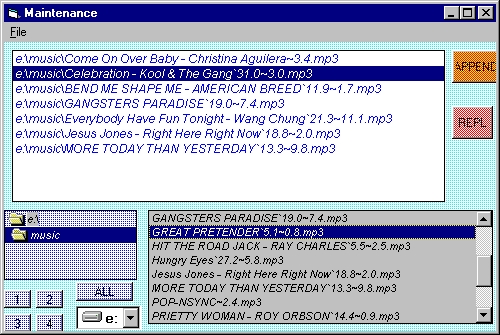
1) Opening an existing playlist (which directly fills the playlist)- From the menu bar, select FILE then OPEN PLAYLIST. A screen browse box will open. You can select the desired file list from the associated file format (winamp(*.m3u), Raduga(*.alb), or Automatronix(*.lst). Once selected, it will load into the PLAYLIST window. Once selected, this clears existing files in PLAYLIST WINDOW and adds the selected playlist to the PLAYLIST WINDOW.
2)Adding by file selection process- For this method, either use the 1-4 key file shortcuts to display the desired directory, or click on the DRIVE box. Only the files with the approved formats (*.WAV, *.MP3) will be displayed (if any). Once files have been displayed, simply highlighting and double-clicking on a file will add it to the PLAYLIST window. NOTE- double-clicking on the same file twice will add that file twice. Each file added is appended to the end of the list
You can also select multiple files by left-click holding the mouse button down, and dragging the mouse down the list, or holding the control key (CTRL) on the keyboard, and left-click highlighting the desired files. Selected files will invert in color. You can also remove files from the selected by this same method.
Once you have selected the desired files, right-click on the FILE LIST WINDOW, and choose ENTER SELECTED FILES TO PLAYLIST. Once completed, all selected files will add to the playlist.
MANIPULATION
OF FILES IN PLAYLIST
Once
files have been added to the playlist, the file order can be modified,
utilizing a "cut & paste" operation, as well as drag-n-drop operation.
If you left-click once a file (which highlights it) and hold the button down, you can drag the file up or down on the playlist. Once you release the mouse button, it will drop the file to the location where the button was released.
If you do not drag the file, but right-click on the highlighted file, a mini-menu appears. From the choices, you can cut & paste, copy files to specific locations. Remember, when pasting files to a location, it pastes the file above the current highlight.
If
you highlight a file, and press the DELETE key on the keyboard, the highlighted
file will be deleted, permanently removing it from the playlist.
SAVING
PLAYLIST FILES
From
the MENU BAR, select FILE then SAVE PLAYLIST. Once the directory
screen opens, select the desired location for the saved playlist. Click
the SAVE button to save it.
PLAYLIST
FILE EXTENSIONS
These
are the reserved file extensions for file list types All file lists are
in text format:
*.lst-
standard playlist- This is the recommended file format to save standard
playlists to.
*.m3u-
Winamp playlist- This is an alternate file format to save playlists to.
*.alb-
Raduga playlist- Although you can save in this format, Raduga may not properly
recognize all
file types saved in this format.
*.mpl-
sub (or mini-playlist) playlist format. Use this format when a sub-playlist
is desired.
*.rpl-
Random playlist format- Use this format for random play file formats. Randomly
picks files; may pick same file
more than once.
*.rot-
Rotate playlist- Use this to play each file in the playlist one at a time,
then repeat when it reaches the end.
More useful than RPL files, as it never the same file twice, until it reaches
the end of list.
*.rnr-
Same as Rotate, but adds the RPL feature, as it randonizes when it reaches
the end of the list.
ADDITIONAL CONTROLS
APPEND- Clicking this button will add whatever is entered into the playlist editor to the end of the main playlist.
REPL- Clicking this button will clear and replace all existing files currently in playlist with the files in the playlist editor.
MIXUP- Randomizes the list each time you click it.
modified 1/16/05