The media tag editor is the program that identifies how Automatronix treats the intro and overlap times of each file. By simple mouse click operation, the file can be properly identified so that both intro and overlap transitions can occur as smoothly as possible.
PURPOSE OF TAGGING SONGS
In order for transitions (segues) to occur seamlessly, transitions between songs (segues) should sound as if a live disk jockey were in the studio. Automatronix simulates this condition by monitoring and adjusting the time one file ends, and the next one starts. By allowing the operator to set the transition times of each file, seamless transitions will occur, resulting in a consistent, smooth program flow.
Each file (song) has a unique place to segue to the next song. A
selection that ends 'cold'
(no fade) would have a different segue point then a song that fades. This
point can be identified by simply listening to the song and 'tagging' this
point. This would actually identify when the next song starts. This is
a convenient, simplistic method to identify each song uniquely, hereinafter
called the OVERLAP TIME.
Conversely, each vocal song
has a time period from the start of the first note, to a point where the
talent begins to sing (sometimes identified as the 'post time'). By 'tagging'
this point, the INTRO TIME of each song can be easily identified. The Media
tag editor allows this to occur.
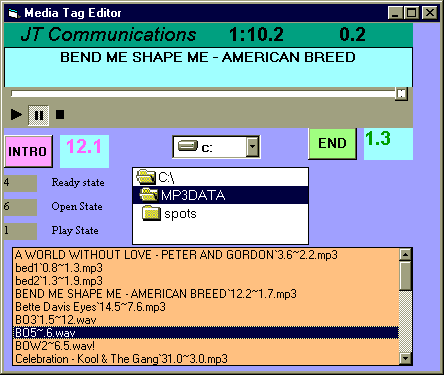
PLAYER WINDOW - This window displays the player. It contains PLAY, PAUSE, and STOP buttons, and position slider (allows you to fast forward or fast rewind selection). Above the player is a sky-blue window that displaysn the name of the selected song. Above the song title is a darker blue window that displays a count up and count down timer.
INTRO BUTTON AND DISPLAY - To the left bottom of the player window is a button labled INTRO, and a blue window to the right of that button. This button sets the intro time of a song.
END BUTTON AND DISPLAY- To the right bottom of the player window is a button labled END, and a blue window to the right of that button. This button sets the overlap time of the song.
DIRECTORY
WINDOWS AND SELECTION SCREENS- These windows allow the
user to select the desired songs.
OPERATION
To start program, open the Windows browser (MY COMPUTER), and select the Automatronix default directory. You will find a program called MEDIATAG.EXE. You can add a shortcut to this program and drag it to the desktop for quick access. Double-click it to open it, and the above screen will appear
First, select the files with
the window selection screens. So that directories will not appear cluttered,
only the allowed file types will be seen. Double-click on the desired
file to play. It will load into the player.
SETTING THE INTRO TIME
Start the player and the count up/count down timers will start, and you will hear the song. If the song has a lead-in (or post time) before the vocal, Set the mouse on the INTRO button, and click it just prior to the start of the vocal. It will set a time in the INTRO time window. If you make a mistake, do NOT PRESS STOP. Instead, slide the position slider back to the begining of the song, and repeat the process.
SETTING THE OVERLAP TIME
It is not necessary to listen
to the entire song to tag the overlap time, Simply slide the player's position
slider to near the end of the song. Dont worry if you go too far; just
slide it back. At a point where it seems that the segue to the next
song
should occur, click the END button. A set time will occur
If you make a mistake DO
NOT PRESS STOP! Instead, slide the player position bar back
proir to the point where you want to set the segue time, and simply repeat
the process.
Once you have established the END (overlap) point, you can either let the player finish playing the song, or simply press the STOP button. At that point, the word DONE will appear, and the newly tagged song will appear with the required parameters in the directory window.
To tag another song, just repeat the process above from the loading of a file into the player.
TAGGING ALREADY TAGGED FILES OR PARTIALLY TAGGED FILES
You can re-tag any song that has already been tagged in the past with the same procedure above. If you already have an intro time and do NOT change it, the program will retain the already set intro time. Once you select a new time, it will place the NEWLY SET intro time into the song. The same holds true with the END (overlap) time.
SOME POINTERS TO REMEMBER:
1)
The file tagger does not like to tag songs with intro times GREATER Than
60 seconds. If it is longer, use 60 as a default.
Last modified 10/15/07